How to Create a VIN QR Code (Free, No Signup)
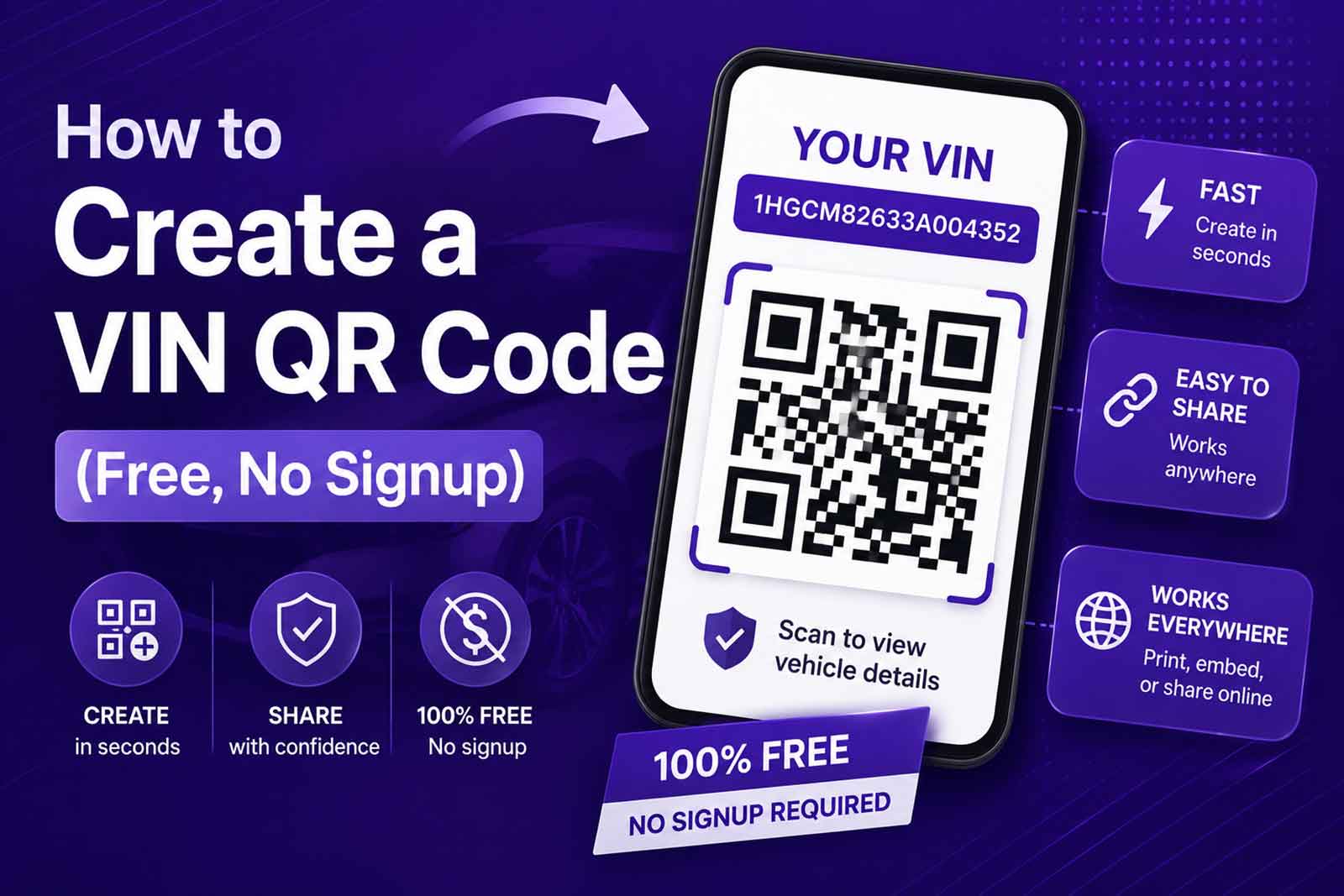
Typing a 17-character VIN by hand is slow and easy to get wrong. A VIN QR code fixes both problems: scan it with any phone and the full number appears instantly, with no mistakes. Making one takes a few seconds and costs nothing. Here is how a VIN QR code works, why shops and dealers use them, and how to create one for free.
What a VIN QR Code Is
A VIN QR code is a scannable square barcode that stores a Vehicle Identification Number. Point a phone camera or a QR reader at it, and the 17-character VIN pops up as text. No app to install, no typing, no transposed characters.
It is the same technology behind the QR codes on menus and packaging, just holding a VIN instead of a web link. That makes it a clean way to attach a machine-readable identity to a specific vehicle, a window sticker, a repair order, or an inventory tag.
Why Put a VIN in a QR Code
A QR code turns the VIN into something a phone can read in one tap. That is worth a lot in a few settings:
- Dealership inventory. Tag each car with a VIN QR code and staff can pull up the right vehicle by scanning, instead of squinting at the windshield.
- Repair shops and workshops. Attach the code to the work order so the VIN travels with the job and never gets mistyped into the system.
- Fleet management. Scan a vehicle in and out without manual data entry.
- Parts and paperwork. Stick the code on a file or a part so the VIN is one scan away.
The theme is the same everywhere: fewer keystrokes, fewer errors. A single wrong character in a VIN sends a parts order or a record to the wrong vehicle, and a scan removes that risk.
How to Create a VIN QR Code for Free
You do not need software or an account. Our VIN QR Code Generator does it in the browser:
- Enter the VIN. Type or paste the 17-character number.
- Generate the code. The QR code appears instantly.
- Download or print it. Save it as a PNG image, then print it on a label, a window sticker, or a work order.
That is the whole process. The code is created on your device, and the VIN is not stored anywhere.
How to Scan a VIN QR Code
Reading one back is just as simple. Most modern phones scan QR codes straight from the camera app: open the camera, point it at the code, and tap the notification that appears. If your camera does not do it automatically, any free QR reader app works. The VIN shows up as plain text, ready to copy.
Make Sure the VIN Is Right First
A QR code is only as good as the number inside it. Encode a wrong VIN and every scan repeats the mistake, so it pays to confirm the number before you generate the code. Run it through our VIN Validator to check the length, characters, and check digit, or use the VIN Decoder to confirm it matches the vehicle. Once the VIN checks out, generate the QR code and you know every scan will be correct.
QR Code vs. Barcode for VINs
You may see VINs stored as traditional barcodes too, usually Code 39 or Data Matrix, especially on factory labels. A QR code holds the same VIN but has some practical advantages for everyday use: any smartphone can read it without a special scanner, it still scans when partly scratched or smudged, and it fits in a small square. For tagging cars, tools, and paperwork by phone, a QR code is the easy choice.
Create One Now
Making a VIN QR code should not cost anything or require a login, and ours does neither. Enter a VIN in the VIN QR Code Generator, download the image, and print it wherever you need a quick, error-free way to pull up a vehicle. For a walkthrough of what the VIN itself means, see our guide on how to read a VIN.
Keep Reading
- How to Read a VIN: What All 17 Characters Mean
- What a VIN Tells You: Decoding Make, Model, and Year
- Where to Find Your VIN: Every Location on Your Vehicle
- How to Check If a VIN Is Valid (and Spot a Cloned One)
Free VIN tools: VIN Generator · VIN Decoder · VIN Validator · Bulk Generator · QR Code Generator · Visualizer