How to Put QR Codes on Every Fleet Vehicle From a VIN List
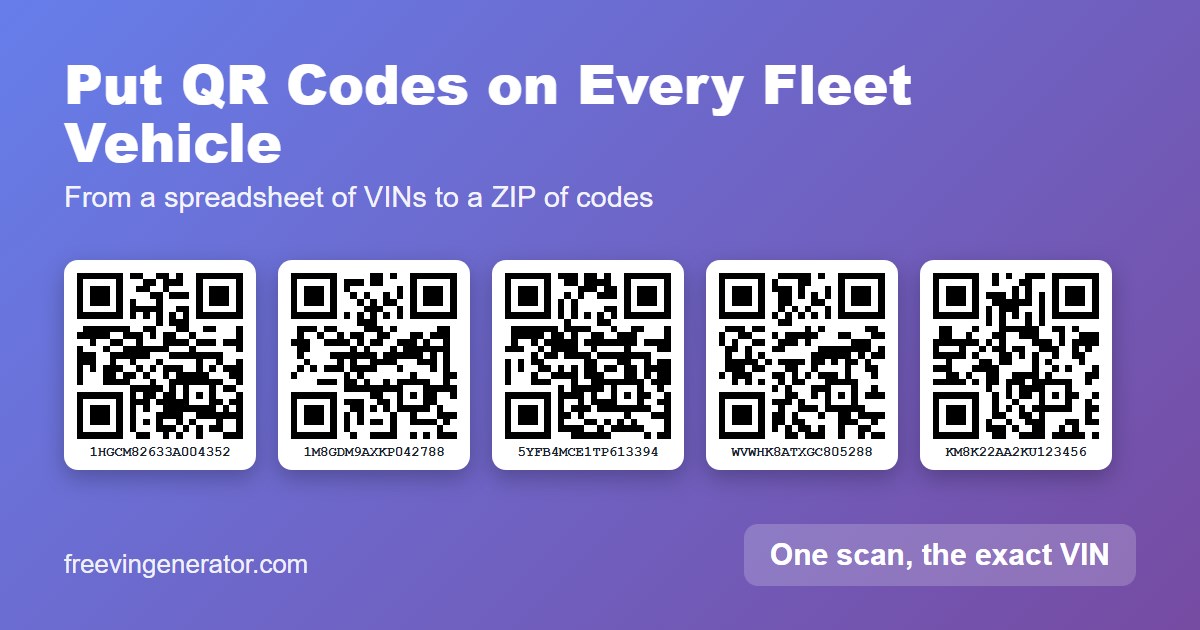
You have a spreadsheet of vehicles with a VIN column. When someone stands next to a van, they have to read a 17-character number and type it into a search box, and two similar trucks are easy to mix up. You want a label on each vehicle that gives the exact VIN with one scan.
The tool part takes seconds. Here is how to do it, and the problems you are likely to hit on the way.
The Quick Version
- Copy the VIN column from your spreadsheet.
- Paste it into the free bulk VIN QR code generator, or upload the CSV file.
- Download the ZIP. It holds one PNG per vehicle, named after its VIN.
- Print one label, put it on a vehicle and scan it with the phone your team uses.
- If it scans, print the rest.
A scan shows the VIN as text. That is all the code holds. It does not store service history, so the VIN is the key you use to find the record in your own sheet or system.
Do It Step by Step
Get the list ready. A header row is fine. If your sheet has a column named VIN along with others such as unit number or plate, the tool picks the VIN column and ignores the rest. You can also paste the VINs one per line.
Pick an image size. Small is 264 px, Medium 528 px and Large 1056 px. Medium suits most labels. Leave “Print the VIN under each code” ticked, so a person can still read the number if a scan fails.
Make the codes. Press the button. The images are built in your browser and nothing is uploaded. The tool shows how many codes it made, how many rows it skipped and why.
Download and print. Open the ZIP. Besides the PNG files there is a list.csv that matches each VIN to its file name.
Problems You Will Hit, and the Fix
| Problem | Why it happens | Fix |
|---|---|---|
| The list has typos or repeats | A code faithfully encodes whatever it is given, mistakes included | Run the sheet through the Bulk VIN Validator first. The QR tool also drops repeats and skips bad rows. |
| The files are named by VIN, not unit number | The tool names each image after the VIN, which is unique | Use list.csv, or add a column in your sheet that builds the file name from the VIN, for example =A2&".png" if the VIN is in column A. |
| The label is too small to scan | Each square of the code needs at least 2 printer dots | Use Medium (about 4.5 cm wide at 300 dpi) or larger. See the size test. |
| A scan shows the VIN but not the record | The code holds only the VIN | Search your sheet or fleet system by that VIN. To check the make and model at the vehicle, paste it into the VIN decoder. |
| Some rows are flagged “check digit differs” | For North American vehicles it usually means a typo. Many European and Asian VINs do not follow that rule. | Look at each flagged row. Codes are still made for them. |
| A plate changed and the label is now wrong | Someone encoded the plate number | Always encode the VIN. Plates change and the VIN does not. See VIN vs license plate vs registration. |
| Crews use handheld scanner guns | Some read only 1D barcodes | Check what the scanners read. If they need a barcode, see QR code vs barcode. |
What We Measured
We ran the finished tool in a real browser to see how long this really takes.
| Batch | Size | Time | ZIP file |
|---|---|---|---|
| 20 codes | Medium | 0.2 seconds | 334 KB |
| 500 codes | Medium | 3.2 seconds | 8.2 MB |
That is about 17 KB per code, so a fleet of 50 comes to less than 1 MB. We scanned every image from the 20-code runs, at all three sizes, with a QR reader, and every one returned the right VIN.
The first problem in the table above comes from a real test. We gave the tool six rows with a header and extra columns. It made three codes, skipped two rows (one with only 8 characters, one with the letter O instead of a zero), removed one repeat and flagged one check digit.
Before You Print the Whole Batch
- Print one label first and scan it in daylight and in a dim garage.
- Keep the blank border around each code. It is part of the code.
- Put the label in the same place on every vehicle, and do not cover the manufacturer’s own labels. Not sure where each VIN is? See where to find your VIN.
- Keep the VIN written under the code and in your sheet, in case a label gets scratched. Our scratch and dirt test shows how little damage it takes to stop a scan.
Keep Reading
- VIN QR Code vs Barcode: Which Survives Scratches and Dirt?
- VIN Labels for Key Tags and Window Stickers: What Fits
- How Small Can a VIN QR Code or Barcode Be and Still Scan?
- How to Validate Multiple VINs at Once
- Where to Find Your VIN: Every Location on Your Vehicle
Free tools: Bulk QR Code Generator · Bulk VIN Validator · Label Maker · VIN Decoder